



Vision Layer Interface VLI
Software interfaces were built for humans. VLI enables AI Agents to use it too!

We have unlocked the vision capabilities for AI Agents to harness
Building AI Agents beyond chat bots or simplistic tasks requires interacting with a variety of applications, file systems, and unstructured data.
Office workflows involve:
- Spreadsheets (embedded logic)
- Multiple web portals (sensitive to bot detection)
- PDFs (unstructured and often scanned images)
- Desktop apps (without APIs or backend integrations)
- Files systems (ever changing)

This is all optimized for human workers; they can navigate and interact with screens using ‘vision’.
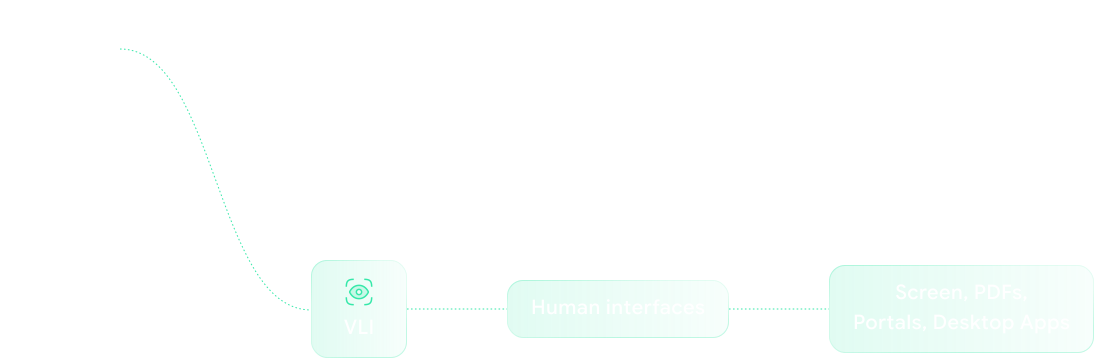
VLI sits in the architecture when there
is no other way besides a screen
How VLI Works
-
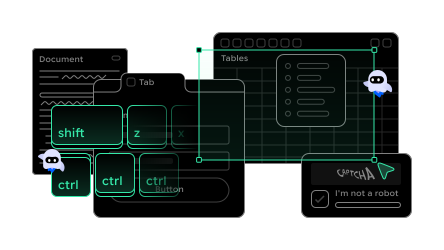
VLI captures the current screen state.
It sees the way a human would:- open windows
- browser tabs
- forms
- tables
- buttons
- menus
- popups
- errors
- document viewers
-
VLI interprets the screen semantically. Process pixels to determine (x,y) coordinates. Identifies meaningful interface objects such as buttons, checkboxes, disabled fields, table rows, windows, text, form elements, etc.
-
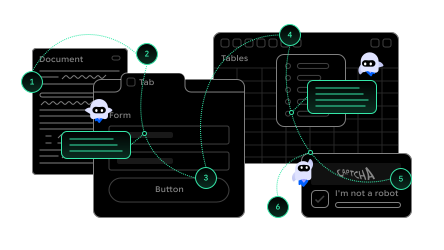
Launch AI workflow engine determines the next action. Some actions are deterministic, such as precise key strokes to type a predetermined value.
Others require in situ reasoning, such as deciding whether a popup is relevant or needs to be discarded.
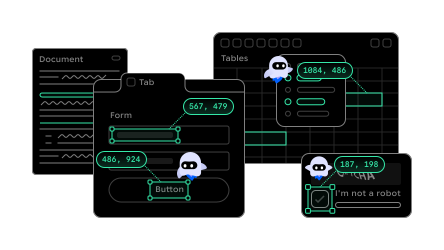
-
VLI sends instructions to the OS via keyboard and mouse functions.
In summary, VLI is an interactive layer that manipulates the screen for the Agent.
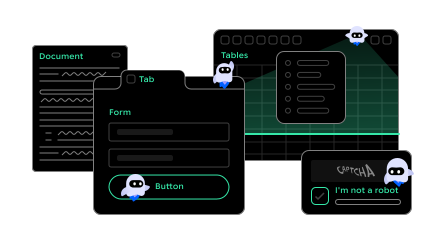
VLI training
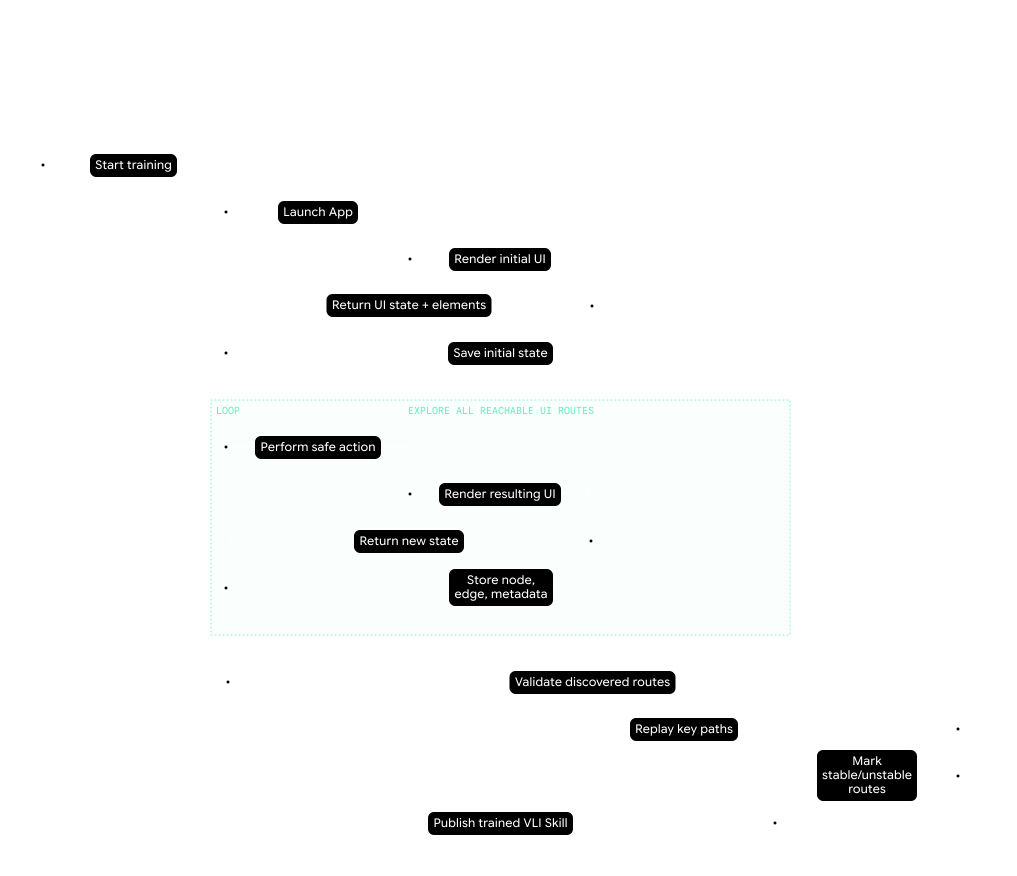
In order to intelligently navigate the interface of any software (web or desktop based), the VLI references embedded skills acquired during training sessions.
-
In a training session the VLI teaches models about all possible navigation routes- almost like traversing the DOM of the application.
-
Every navigation route is mapped into a tree where the nodes of the tree are buttons, fields, or navigable elements in the UI.
-
This way when your Agent has a task, the VLI is aware of how to accomplish the involved steps in advance.
-
Navigation speeds up, there is no need to make decisions insitu, and most importantly the token cost is vastly reduced.
Easy & Intuitive commands
VLI's action language is designed to reflect how humans describe computer work
Command example 1 of 7
Precise coordinates + Intelligent models + App knowledge = Success
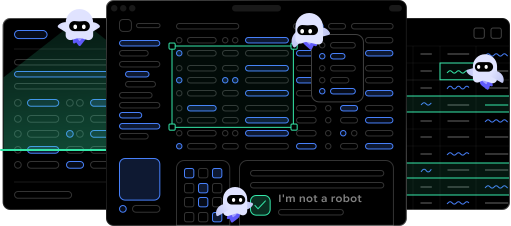

The success of the paradigm depends on the Agent's ability to translate visual understanding into precise screen action. It is not enough for the Agent to know that a button exists (LLMs do that part pretty well).

The system must identify where that button exists on the screen, determine whether it is interactable, and execute the correct mouse or keyboard event.
VLI connects model-level reasoning, app-specific knowledge, and OS-level control
See Demo
A vision model may determine that the target is the "Submit Claim" button near the bottom-right of a form. VLI then converts that understanding into coordinates, validates the region, performs the click, captures the post-action screen, and determines whether the expected state change occurred.

PyAutoGUI or an equivalent OS-level automation layer can be used for the physical execution of mouse and keyboard events. But the core value of VLI is not the click itself. The value is deciding what to click, why to click it, how to recover if the click fails, and how to prove what happened afterward.
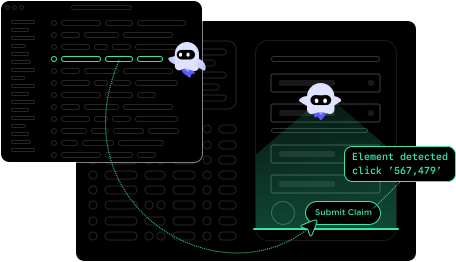
That is the difference between desktop scripting
and vision-based agentic execution
What does VLI do during runtime?
-
Load
Read the next action from the workflow map
-
Observe
Capture a before screenshot
-
Resolve
Determine the target element, region, value, or coordinate
-
Act
Execute mouse, keyboard, scroll, or scrape behavior
-
Capture
Take an after screenshot
-
Annotate
Draw a red box around the interaction or screen region used
-
Verify
Confirm the expected screen change or extracted result
-
Log
Save screenshots, action metadata, coordinates, and output
VLI Reference sheet
Select a visible UI element by description
Click a known screen position
Explicit left mouse click on an element
Open a file, folder, row, app, or record
Open a context menu or secondary action menu
Trigger middle-click behavior, such as opening a link in a new tab
Move cursor over an element to reveal menus, tooltips, or hidden controls
Move cursor to an element or coordinate without clicking
Click, hold, move, and release an item onto a target
Select text, rows, cells, or a screen region by dragging
Resize a window, pane, column, or object by dragging its edge
Enter static text into the active field
Enter runtime data into the active field
Reuse captured output from an earlier action
Clear text or selected content from a field
Copy selected text, file, table, or region
Paste clipboard contents into the active field or location
Cut selected text, file, table rows, or content
Send a single keyboard input or shortcut
Send a keyboard combination
Send multiple key events in sequence
Scroll to reveal hidden content or find a described element
Scroll downward within the active region
Scroll upward within the active region
Scroll horizontally left within a wide table or panel
Scroll horizontally right within a wide table or panel
Move down by one page of content
Move up by one page of content
Move to the top of a page, table, or document
Move to the bottom of a page, table, or document
Extract visible text or values from the screen
Extract structured rows and columns from a visible table
Extract data from a specific visual region
Capture the current screen or described context
Capture a specific area of the screen
Locate a visible element, label, field, value, or text on screen
Pause until a described condition becomes true
Wait for a specific UI element to appear
Wait until an element, spinner, modal, or loader disappears
Confirm that an expected screen state is visible
Confirm that specific text is present on screen
Confirm that a visible value matches the expected value
Compare visible values, extracted outputs, or screen states
Trigger and capture a file download from the interface
Upload a file through a file picker or drag-and-drop zone
Open a system file picker from the interface
Select a file inside a system dialog
Save a file through a system dialog
Mark an interaction or extraction region in the screenshot log
Record structured metadata, output, coordinates, or decision state